
Motorola CP200d resource center
Motorola CP200d Resources
Quick start setup, MOTOTRBO CPS 2.0 programming help, FAQs and compatible accessories for the Motorola CP200d. Free lifetime support from Two Way Radio Gear.

Jump to a topic
Choose a task
What do you need help with?
Go straight to the job you are trying to finish. Every topic below uses the information attached to this exact radio model.
Watch and learn
CP200d videos
Product overviews, demonstrations, and operating guidance for this exact model.
Why the R2 and CP100d Are Perfect Additions for CP200d Users
Start here
Quick start
The shortest path from opening the box to basic operation.
Open the quick-start guideFocus on the essential steps without leaving this page. Open guideClose guide
Fleet setup
Programming
Keep a known-good configuration and make every radio in the fleet match.
Open the configuration guideWork through the model's software and setup procedure. Open guideClose guide
Product literature
Documents
Open the available files in a new tab so you keep your place in the hub.
Common questions
Frequently asked questions
Compatibility, licensing, setup, and support answers for this model.
Does the Motorola CP200d require an FCC license?
Yes. This radio transmits on FCC Part 90 business frequencies, which require a business radio license. We can file the application for you - just ask.
How do I program the Motorola CP200d?
Use a compatible MOTOTRBO CPS version and the correct CP200d programming cable. Read and save the original configuration before editing, then use the appropriate Write or Clone operation and verify the radio. See the programming guide above. We can also program the fleet before it ships.
What band and technology does the Motorola CP200d use?
The CP200d is available in UHF or VHF variants. It supports analog operation, with digital operation on digital-enabled radios. Motorola's datasheet lists 16 channels; its CP200d user guide describes up to 32 channels across two zones of 16. Confirm the supported zone and channel configuration for your exact radio and software version.
Will the Motorola CP200d talk to our older radios?
Compatibility depends on the exact models, band, operating mode, frequencies, and signaling settings. To communicate with an analog radio, the CP200d must use a matching analog channel. Digital communication also requires compatible digital settings. Matching channel numbers alone is not enough. Send us the model numbers and existing channel plan so we can check compatibility.
What support comes with the Motorola CP200d?
Free lifetime technical support from our US-based team, programming help whenever your channel plan changes, and assistance with warranty claims.
Keep it running
Troubleshooting
Fast checks for the issues that create the most support calls.
Open the troubleshooting guideReview the most likely causes in one focused view. Open guideClose guide
Compatible gear
Accessories
Products linked to this exact model in the resource catalog.
-
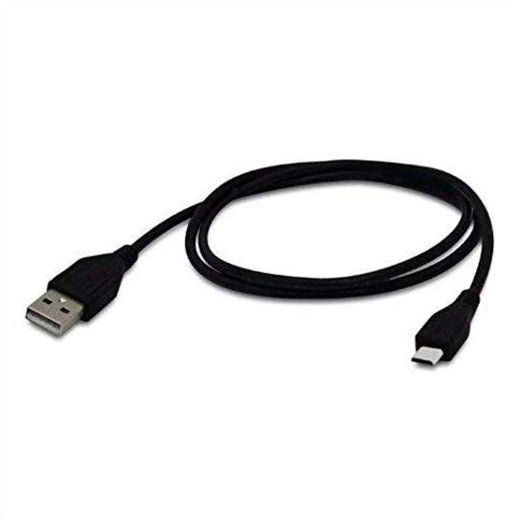 Motorola CB000262A01 USB Programming Cable for R2, CP200d & SL300View accessory →
-
 EC6M-MT3 “CP200” Two Way Radio Tri Chemistry Smart ChargerView accessory →
-
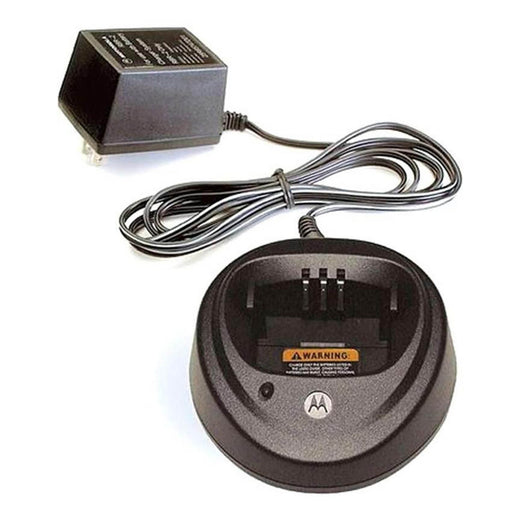 Motorola PMPN4173 Replacement Charger for CP200 RadiosView accessory →
-
 RadioGrips® Silicone Carry Case for Motorola CP200 & CP200d – Durable, Shockproof & Non-Slip Two-Way Radio ProtectorView accessory →


Fleet support
Need a human to check the plan?
Tell us what your team uses today and what needs to work. We can help with radio selection, fleet sizing, programming, and accessories.